5 Methods to Reset Microsoft Windows 10
The following methods allow you to reset your Windows 10 PC to factory settings. You can choose whether all data should be deleted or just perform a clean reinstallation of the operating system.
Preparation
BitLocker If your PC is protected by BitLocker, you will need the BitLocker Recovery Key for the reset. Make sure you have access to it. If it was stored in Active Directory, you can automatically recover or retrieve it during restoration by logging in.
WLAN If your device accesses the internet via WLAN, make sure you have the access credentials for your WLAN at hand. When resetting your PC, you may need to log in to your WLAN again.
Multi-Factor Authentication / MFA If configured: If you use additional features when logging in, e.g., a mobile device to receive codes or confirm logins, please make sure you have access to them. When you log in to your PC after the reset, multi-factor authentication may be performed.
Method 1: Starting the Reset Assistant
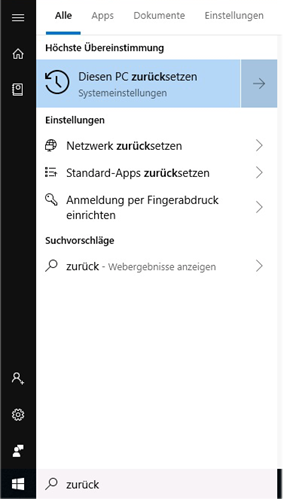
If you are logged in under Windows 10, enter the following in the search:
"Reset" or "Zurücksetzen" on a German-language PC.
Alternative:
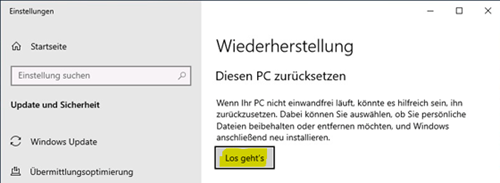
Click  Start in the taskbar, select
  Settings > Update & Security >
  Recovery.
Method 2: Recovery Mode after Restart from Login Screen
Hold down the Shift key while clicking the  Power symbol in the lower right corner and select Restart. After your PC restarts, select Troubleshoot>Reset this PC.

Method 3: Recovery Mode after Restart from Desktop
If you are already logged in, you can also initiate the reset after a restart from the desktop. Press Start in the taskbar or the Windows key on your keyboard and then hold down the Shift key while clicking the Power symbol and selecting the Restart option.
Method 4: Reset from Command Line
Start the command line with elevated privileges (requires administrator permissions). To do this, type "cmd" in the search and right-click on the search result. Select "Run as administrator".
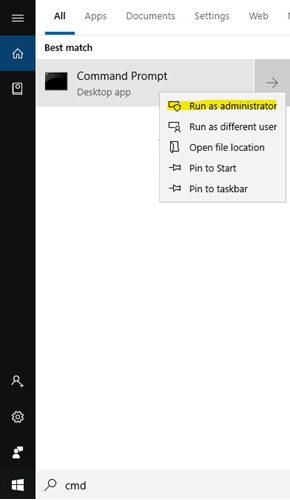
Then enter the following command in the input window:
systemreset
To completely clean the system, specify the -cleanpc option:
systemreset -cleanpc
Method 5: Start Windows 10 from Installation Media
Start Windows from installation media (for example, a USB stick). After starting, simply select the repair option.
This article describes 5 different methods to reset Microsoft Windows 10 to its factory settings.
Introduction
There are various reasons why you might want to reset your Windows 10 computer to factory settings. Whether due to system errors, malware infections, or performance issues, a factory reset can help restore your system to a clean state.
Method 1: Reset via Windows Settings
- Open Windows Settings (Windows key + I)
- Navigate to "Update & Security"
- Select "Recovery" from the left menu
- Under "Reset this PC", click "Get started"
- Choose whether to keep your files or remove everything
- Follow the on-screen instructions
Method 2: Reset via Command Prompt
You can also reset Windows 10 using the command line:
systemreset -factoryreset
Method 3: Using Installation Media
Boot from a Windows 10 installation USB or DVD and select the reset option during setup.
Method 4: From Login Screen
If you cannot access Windows normally, you can reset from the login screen by holding Shift and clicking the Power button, then selecting Restart.
Method 5: Using Recovery Environment
Access the Windows Recovery Environment (WinRE) by interrupting the boot process three times, then navigate to troubleshooting options.