Setting Up Your Exchange Online Account for Use with Apple Mail on Mac OS/X
The following article describes how to connect Apple Mail with your Exchange Online mailbox.
Start Apple Mail
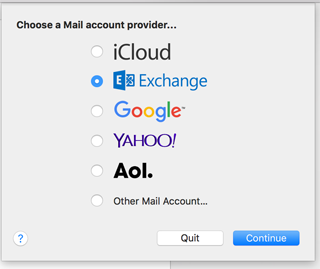
If you have not used Apple Mail before, you will now be prompted directly to select a mailbox type:
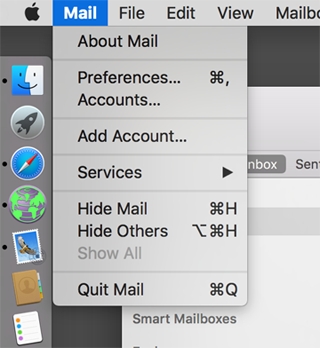
Otherwise, please select "Accounts..." in the Apple Mail menu to manage existing accounts and add a new account, or select "Add Account..." directly to set up your new mailbox:
Regardless of which path you used, select "Exchange" as the mailbox type for the new mailbox.
You will now be asked for the login credentials.
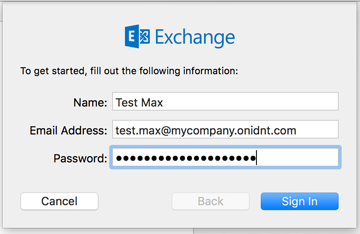
Please enter the provided username as the email address if it differs from your email address. After successful login, you have the option to select which information should be synchronized between Apple Mail and your Exchange mailbox. Usually, you can simply leave all options enabled.
This article describes how to configure your Exchange Online account for use with Apple Mail on Mac OS/X.
Prerequisites
- An active Exchange Online account
- Mac OS/X with Apple Mail installed
- Your Exchange Online credentials
Configuration Steps
- Open Apple Mail
- Go to Mail > Preferences
- Click on "Accounts"
- Click the "+" button to add a new account
- Select "Exchange" as the account type
- Enter your email address and password
- Apple Mail will automatically configure the server settings
- Click "Create" to finish the setup
Troubleshooting
If automatic configuration fails:
- Manually enter server settings
- Verify your credentials
- Check network connectivity
- Ensure Exchange Online is properly configured