Setting up automatic out-of-office notifications in Outlook 2013 or 2016
Time for vacation! But first, quickly set up an automatic out-of-office notification. Here's how to do it:
Setting up an automatic reply
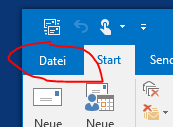
- Select "File" at the top left of the menu bar:
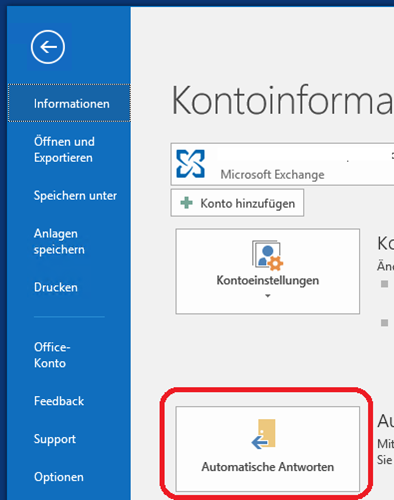
 2. Now select "Automatic Replies":
 3. Select "Send automatic replies" and enter a time period during which you want to send an automatic message to all email senders:
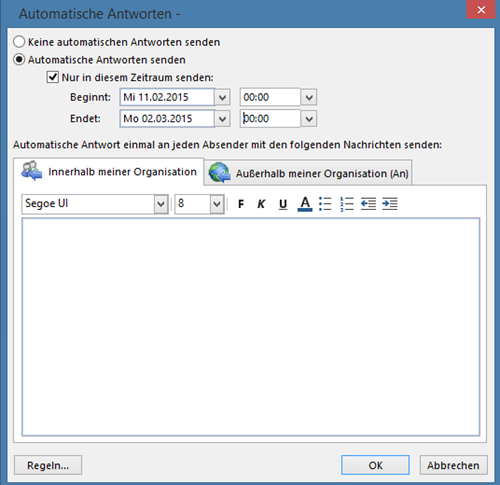
If you do not select a time period, your message will be sent automatically until you manually deactivate it.
What you should also know about this
Out-of-office notifications are sent only once per sender during the specified time period. This prevents the same person from receiving multiple automatic replies if they send you several emails during your absence.
The automatic reply feature works with Exchange Online and Exchange Server environments. Make sure your Outlook is properly connected to your Exchange account for this feature to work correctly.
You can set different messages for internal (within your organization) and external (outside your organization) senders by using the respective tabs in the automatic replies dialog.